Why CineGame is a great solution for everyone
CineGame offers you an opportunity to entertain your guests before the movie has even begun. That’s a great way to stand out from your competitors.
Gamification is a fun and more memorable way to make a lasting effect on consumers than regular advertising.
A CineGame is a closed system with complete control over everything. Nothing can get on the cinema screen or into a CineGame app without having been through Cinemataztic’s quality control.
-
01
Lobby
The audience logs on
The lobby is the first thing the audience experiences. Here they see how they take part in the game and what they can win. It can hold graphic elements, 3D animations, video, sound effects and of course music.
-
02
Game
The game is played
The game can be almost anything: nearly any game can be turned into a CineGame, and every element of it can be adapted to the brand.
-
03
Winner
The winner is found
The winner is shown on the screen together with a picture of the prize and any tagline, and the prize is sent to the winner's CineGame app.
- Logo
- Colour codes
- Fonts
- Music
- Existing graphic elements
- Sounds
- Movies and animations
The Cinemataztic player works with different cinema automation systems (like Doremi). How you show your system is out of scope here, but the player must be configured as usual.
If you have demoed the games on the player as described in the next card, you must remove the checkmark from the “Ignore game cooldown” setting:
- Find the correct Cinemataztic player in the Cinemataztic Cloud
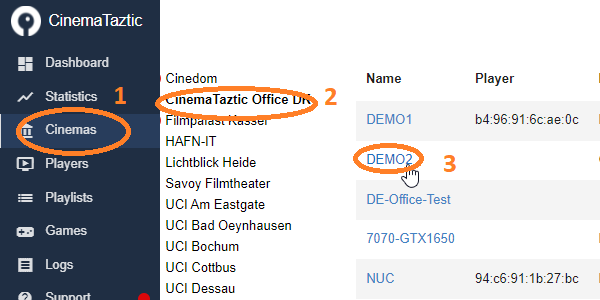
- Open its settings

- Make sure “Ignore game cooldown” is not set
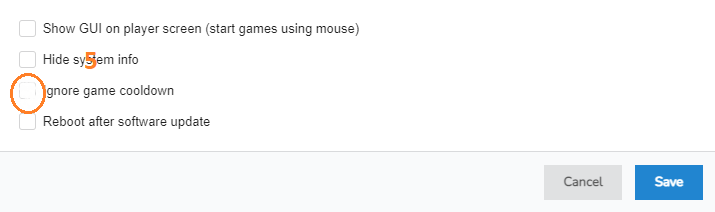
If it is left on while showing the backend and you start games in quick succession, the games will end before time. So this kind of demo must use full game sessions only.
If you only want to show the different games, and perhaps skip the lobby, restart games before time, or exit games and start new ones, this method is for you.
To freely start, stop and skip games, the “Ignore game cooldown” checkmark must be set. Uncheck it again before going back into production and before showing the backend scheduler.
- Find the correct player as above and change these settings
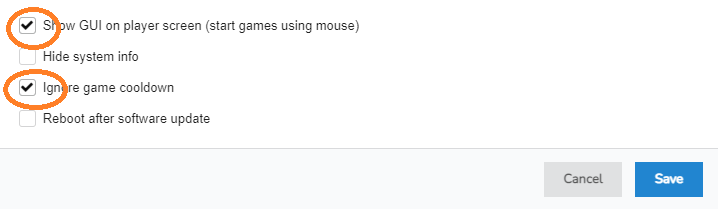
- Make sure Show GUI is set, and consider setting the player’s playlist to “DEMO”
- Connect a keyboard directly to the player: you can now start the games directly from the list
Keyboard shortcuts
- In the menu: 1–9 starts the game with that number, P makes a ping sound
- In the game: Alt + F4 ends the game running now
- In the game lobby: hold S, then hit Space to skip the lobby