- Doremi setup
- Macro setup
- Testing
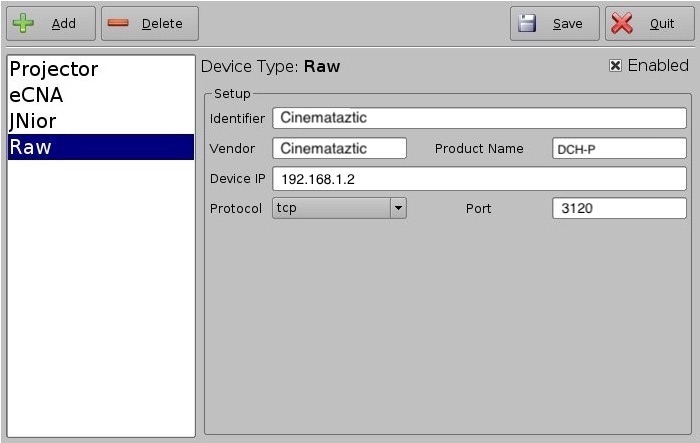
- Open Device Manager
- Add new device of type “Raw”
- Add device information
- Input the (fixed) IP address the device will receive cues on.
- Port (defaults to 3120), unless otherwise specified in the cloud admin interface
- Device is now ready to receive cues
It is a good idea to have set up the machine to have a reserved IP address on the networks DHCP server, to ensure it has the same address between reboots.
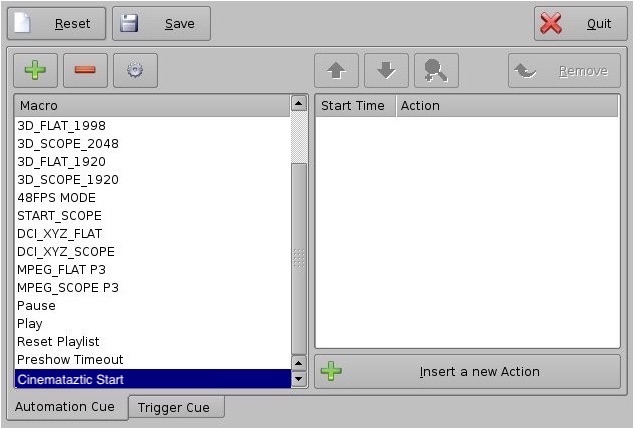
- Open Macro Editor: (Menu → Doremi Labs, Inc. → Macro Editor)
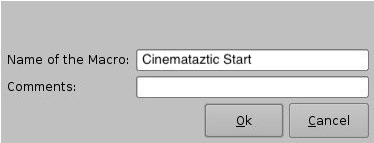
- Click the Add button (+)
- Give the cue a name (e.g. Start_cinemataztic)
- Description (e.g. start Cinemataztic show on CinemaTaztic DCH-P)
- Click OK
- Select the newly created Automation Cue and click Insert a new Action
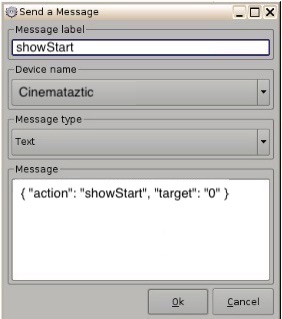
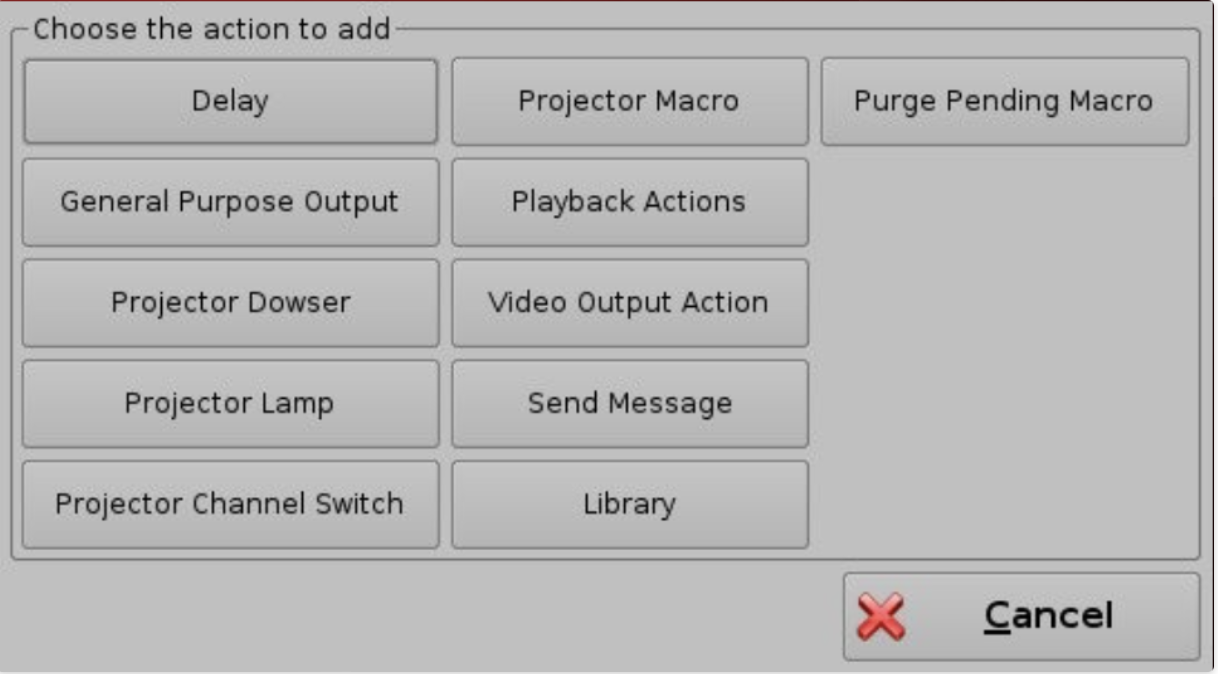
- Choose Send Message
- Set Message label to e.g. “showStart”
- Choose Cinemataztic in the Device name dropdown
- Set Message type to Text
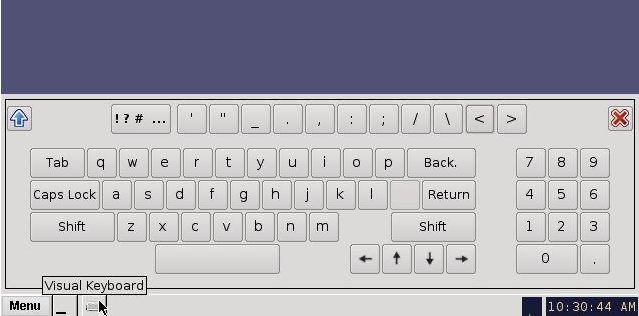
- Use Doremi’s virtual keyboard to create the curly braces { } used in the message and be sure the
" "are formatted correctly (not as“ “).